
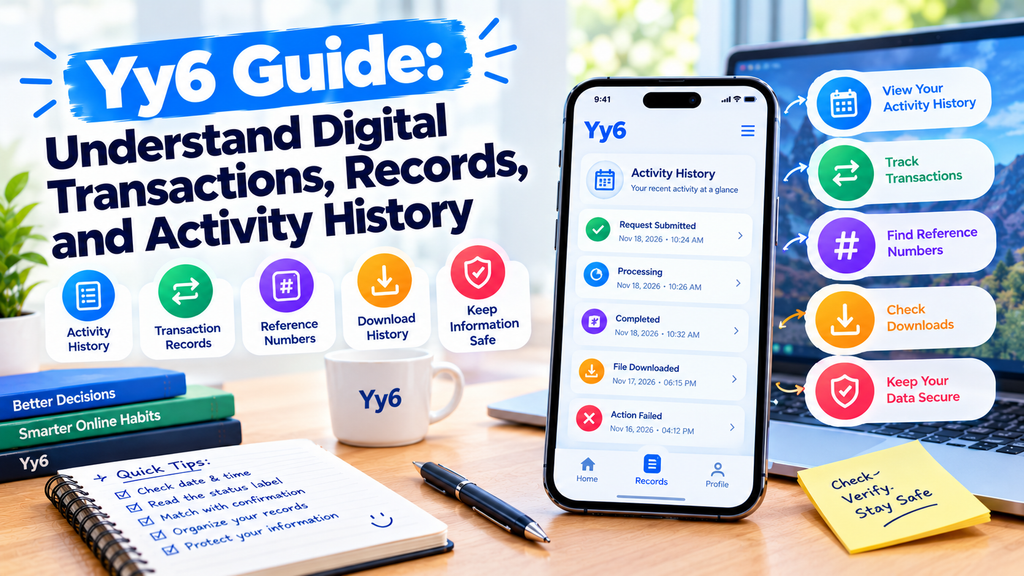
Digital platforms often involve different types of activities, from submitting information to confirming requests and reviewing previous actions. Keeping track of these activities helps users understand what has happened and identify details they may need later.
For people using Yy6 or other online services, understanding digital records is a useful part of responsible platform use. A clear record can help answer questions such as when an action took place, what information was displayed, and whether a request received a response.
This guide explains how digital activity records work, what different entries may contain, and how to keep useful information organized.
What Are Digital Activity Records?
Digital activity records are details saved by a website, application, or device about certain events. Depending on the service, these records may include dates, actions, reference numbers, and status information.
They help users review previous activity instead of relying entirely on memory.
Common examples include:
- Form submission confirmations.
- Service request details.
- Login activity summaries.
- Order or booking records.
- Download history.
- Account-related notifications.
Not every platform provides all these records. The information available depends on the service and its features.
Understand the Different Types of Digital Records
Different records serve different purposes. Knowing what each one represents can make it easier to find the correct information.
Activity History
Activity history provides a list of selected actions performed within a website or application.
Depending on the platform, it may display dates, activity descriptions, and other relevant details.
An activity history can help users remember when something happened. However, it may not contain every action performed on the device.
Transaction Records
A transaction record documents an exchange or operation handled by a service. Depending on the platform, it may include a reference number, date, amount, and current status.
Users should read each field carefully. A record showing that a request was created does not necessarily prove that the entire process has been completed.
If a service does not involve financial transactions, this type of record may not apply.
Reference Numbers
A reference number is a unique or semi-unique identifier assigned to a particular request or record.
It helps users and support teams identify the correct entry when discussing an issue.
If a Yy6 service provides reference numbers, keep them with the related confirmation message rather than storing them without context.
Download History
Download history helps users identify files that were previously downloaded through a browser or device.
It may display file names, download dates, and file locations. This information can be useful when checking whether a file was saved successfully.
A download record does not prove that a file is genuine or safe. Its source should still be verified separately.
How to Read a Digital Record Correctly
A record may contain several details that appear similar but have different meanings. Reading them separately can prevent misunderstandings.
Check the Date and Time
The date and time indicate when an event was recorded. Some services display the device’s local time, while others may use a different time zone.
If two records appear to have different times, check whether they use the same time zone before assuming that something is incorrect.
Understand the Status Label
Status labels describe the current stage of an activity.
Common examples include:
- Pending: The process may still be waiting for another step.
- Completed: The recorded action has finished.
- Failed: The attempted action was unsuccessful.
- Cancelled: The activity was stopped.
- Under review: The service may still be checking the request.
These labels can vary between platforms. Always read any explanation provided by the service.
Match the Record With Its Confirmation
If a service provides a confirmation message, compare it with the related activity entry.
Check whether the date, description, and reference number match. This makes it easier to identify the correct record if several activities look similar.
Create a Simple System for Keeping Records
Keeping useful records does not require complicated software. A basic organization method can make important information easier to retrieve.
Separate Records by Purpose
Avoid saving every screenshot and document in one folder.
Instead, create a few categories based on the type of information:
- Account-related information.
- Service confirmations.
- Important downloads.
- Support conversations.
- General reference documents.
Use clear folder names so that files remain easy to identify.
Use Meaningful File Names
A file name should explain what the file contains.
For example, instead of keeping a screenshot named IMG_2048, use a descriptive name such as Service_Confirmation_November.
Avoid placing passwords, private account details, or sensitive personal information in file names.
Remove Duplicate and Outdated Files
Duplicate files make it harder to identify the correct document. Review saved records occasionally and remove unnecessary copies.
Before deleting anything, make sure it is not the only copy of important information.
What to Do When a Digital Record Looks Incorrect
An unexpected entry does not always mean that something serious has happened. It may result from a display issue, delayed update, or misunderstanding of the status label.
Use a careful process before taking action.
- Read the complete entry.
- Check its date, time, and description.
- Compare it with any available confirmation.
- Refresh the relevant page if the information appears incomplete.
- Contact the service through a verified support channel if the difference remains.
For a Yy6 game or another online service, avoid sharing private account details with unknown people who claim they can correct records.
Protect the Information Stored in Your Records
Digital records can contain personal details, so they should be handled carefully.
Follow these basic precautions:
- Do not publish private confirmations online.
- Avoid sharing reference numbers publicly.
- Store important files in a protected location.
- Review who can access shared folders.
- Delete unnecessary copies of sensitive documents.
- Never send passwords through ordinary messages.
If a record contains financial or identity information, use extra care when saving or sharing it.
Final Thoughts
Digital records provide a useful way to review previous activities and understand the status of different requests. Activity history, confirmation messages, reference numbers, and download records each serve a different purpose.
For Yy6 users, knowing how to read and organize available records can make online activity easier to manage. Whether using a Yy6 game apk or accessing a service through a browser, the important thing is to understand what each record confirms and keep relevant information protected.
A simple record-keeping routine can prevent confusion later. Save what matters, label it clearly, and verify unexpected information before acting on it.
Frequently Asked Questions
1. What is a digital activity record?
It is information saved by a website, application, or device about selected activities. It may include dates, descriptions, and status details.
2. What is the purpose of a reference number?
A reference number helps identify a particular request or record. It can make communication with a service’s support team easier.
3. Does a pending status mean that a request has failed?
No. Pending usually means that the process has not reached its final stage. The exact meaning depends on the platform.
4. Can I use screenshots as digital records?
Screenshots can help preserve visible information, such as confirmation messages. However, they may not replace official records provided by a service.
5. How often should I organize saved records?
A monthly review is a practical starting point. You can remove duplicates, rename unclear files, and move important documents into suitable folders.
6. What should I do if a Yy6 record appears incorrect?
Check the date, description, and status first. If the information still seems wrong, contact the service through a verified support channel without sharing passwords or unnecessary personal details.