
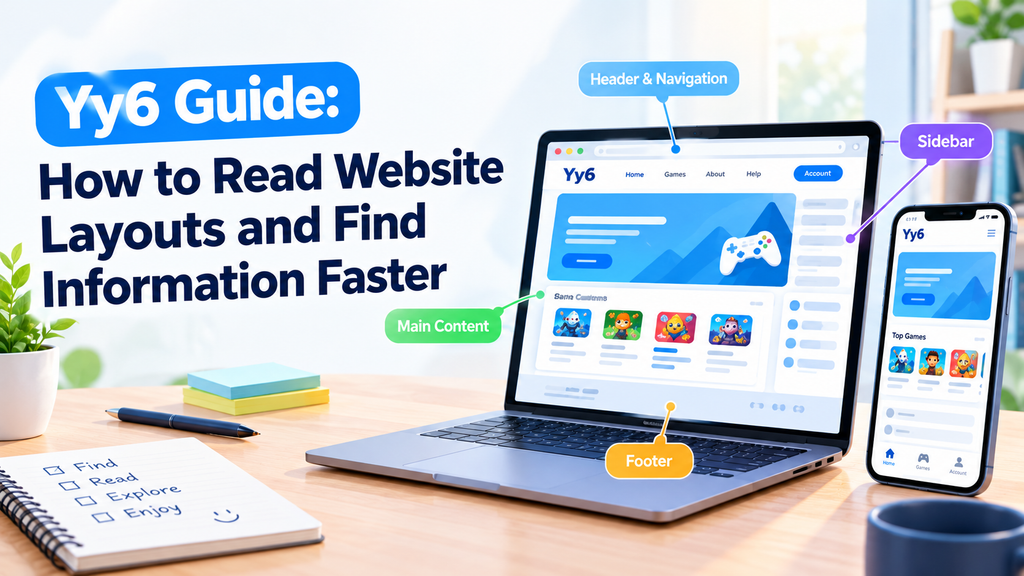
A website can contain menus, buttons, images, text sections, and several types of information. When these elements are not easy to understand, users may spend more time trying to find a particular detail than actually using the page.
Understanding website layouts makes online navigation easier. It helps users recognize important sections, follow page structure, and locate relevant information without clicking every available option.
For people using Yy6 through a website, these skills can make browsing more straightforward. This guide explains common website layouts, the purpose of different page elements, and practical ways to understand what a page is showing.
Why Website Layouts Matter
A website layout is the way information and visual elements are arranged on a page. A well-organized layout helps visitors understand where to look and what different sections contain.
Most websites use familiar patterns. The navigation menu is often near the top, the main information appears in the center, and additional details may be placed near the bottom.
Understanding these patterns can help users:
- Find important information with fewer clicks.
- Recognize navigation options.
- Understand the purpose of different page sections.
- Avoid selecting unrelated buttons.
- Read long pages in a more organized way.
A website does not need a complicated design to be useful. Clear structure and readable information are more important than decorative effects.
Understand the Main Parts of a Website
Different websites may use different designs, but many share a few common elements.
Header and Navigation Menu
The header is usually the top section of a webpage. It may contain a website name, logo, navigation links, or account-related options.
A navigation menu helps visitors move between different sections.
Common menu labels include:
- Home
- About
- Services
- Help
- Contact
- Account
Read the labels before selecting them. A menu item should clearly indicate the type of information it contains.
Main Content Area
The main content area contains the primary information on a page. It may include headings, paragraphs, images, instructions, or other useful material.
When visiting a Yy6 page, focus on the actual information provided rather than assuming that every visible element represents an important feature.
Read the main heading first, then check the smaller sections below it. This makes it easier to understand the page’s purpose.
Sidebar and Secondary Sections
Some websites use a sidebar to display additional information. It may contain related articles, category links, filters, or other navigation options.
Sidebars are not always available, especially on mobile screens. A website may move these elements into a menu or place them below the main content.
Do not confuse secondary information with the main instructions on a page.
Footer
The footer appears near the bottom of a webpage. It often contains links to important information about the website.
Common footer sections include:
- Contact information.
- Privacy policy.
- Terms and conditions.
- Frequently asked questions.
- Copyright details.
Reviewing the footer can help visitors locate information that is not displayed in the main navigation menu.
Learn to Recognize Common Website Elements
Websites use different visual elements to help users interact with information.
Buttons
Buttons usually perform an action when selected. They may open another page, submit a form, or display additional content.
Before clicking a button, read its label. Words such as Continue, Submit, Cancel, and Download describe different actions.
Avoid selecting buttons when their purpose is unclear.
Links
A link takes users to another webpage or a different section of the current page.
Links may appear as colored text, underlined words, or navigation labels. On some mobile websites, they can be difficult to distinguish from ordinary text.
Check the destination when possible, especially before opening a page that requests personal information.
Forms and Input Fields
Forms collect information entered by visitors. They may include text boxes, dropdown menus, checkboxes, and submit buttons.
Before completing a form, check:
- Which fields are required.
- What information is being requested.
- Whether the instructions are clear.
- What happens after submission.
- Whether the page belongs to the expected service.
Only provide information that is necessary and appropriate.
How to Read a Website Page More Efficiently
You do not need to read every line immediately. A structured approach can help you identify the most useful information first.
Start With the Main Heading
The main heading usually describes the topic of the page. Read it before moving to smaller sections.
If the heading does not match the information you need, returning to the navigation menu may be more useful than continuing.
Use Subheadings to Find Relevant Sections
Long webpages often divide information into sections with smaller headings.
Scan these headings to identify the part that matches your question. Then read the paragraphs beneath that heading.
This method is useful for understanding guides, instructions, and service information.
Look for Dates and Updated Information
Some pages display publication dates or update notices. These details can help readers understand how recent the information may be.
However, a recent date alone does not prove that every statement is accurate. Check important details against reliable information from the relevant service.
Make Website Navigation Easier on a Mobile Screen
Mobile layouts often differ from desktop layouts. A page that looks spacious on a computer may place its sections vertically on a phone.
Use these habits to improve navigation:
- Scroll gradually instead of moving through the page too quickly.
- Use the browser’s find option when available to locate specific words.
- Rotate the screen if a wide section is difficult to read.
- Adjust text size when the page is uncomfortable to view.
- Return to the top when you need to use the main navigation menu.
- Avoid tapping several controls when one action has not finished loading.
These steps can make a Yy6 game website or another mobile-friendly service easier to understand, depending on the layout it provides.
Identify Confusing or Poorly Designed Pages
Not every website presents information clearly. Some pages use unclear labels, crowded sections, or unnecessary pop-ups.
Pay attention to these warning signs:
- Buttons without clear descriptions.
- Important information hidden among unrelated content.
- Repeated pop-ups that interrupt reading.
- Text that is too small or difficult to understand.
- Forms that request information without explaining why.
If a page is confusing, do not guess what a control does. Look for clear instructions or use a verified help section.
Final Thoughts
Understanding website layouts is a practical skill that improves everyday browsing. Headers, navigation menus, content areas, sidebars, and footers each serve a different purpose. Recognizing these elements helps users find information without unnecessary effort.
For Yy6 users, the same approach can make website navigation more organized. Whether a person visits a service through a browser or uses a Yy6 game apk, it is important to understand the information displayed before taking action.
A clear reading process is simple: identify the page topic, follow the headings, check the available options, and avoid selecting controls that you do not understand.
Frequently Asked Questions
1. What is a website layout?
A website layout describes how different elements, such as menus, headings, images, and content sections, are arranged on a webpage.
2. What is the purpose of a navigation menu?
A navigation menu helps visitors move between different pages or sections of a website.
3. What information is usually found in a website footer?
A footer may contain contact details, privacy information, terms, help links, and other supporting information.
4. How can I find specific information on a long webpage?
Read the main heading, scan the subheadings, and use the browser’s find feature when available.
5. Why does a website look different on a phone?
Many websites adjust their layouts for smaller screens. They may change menu positions, resize images, and arrange content vertically.
6. What should I do if a website button has an unclear purpose?
Do not select it based on a guess. Look for an explanation, check the surrounding instructions, or contact the service through a verified support channel.