
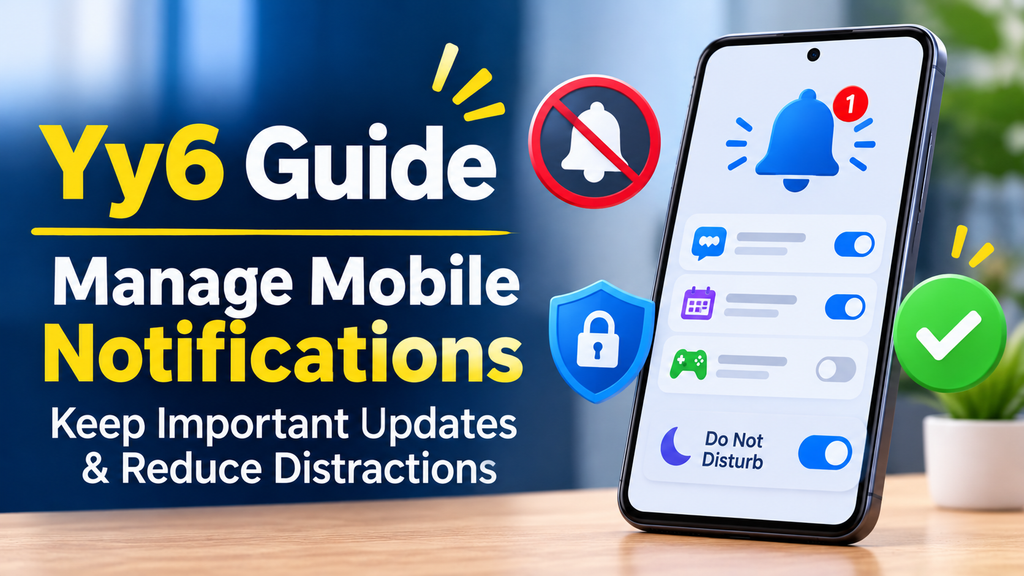
Mobile notifications help users stay informed about messages, reminders, app activity, and other updates. However, receiving too many alerts can interrupt daily tasks and make it difficult to notice information that actually matters.
A well-managed phone should provide useful updates without creating constant distractions. For people who use Yy6 or other mobile services, understanding notification settings can make everyday device use more organized.
This guide explains how notifications work, how to control them, and how to build a simple system that keeps unnecessary alerts under control.
What Are Mobile Notifications?
Notifications are short messages displayed by a phone or application to share information. They may appear on the lock screen, notification panel, or as small pop-up alerts.
Depending on the application and device settings, notifications may include:
- New messages or communication updates.
- Reminders and scheduled alerts.
- Application activity.
- System notices.
- Information about available updates.
Not every application uses notifications in the same way. Some provide detailed controls, while others offer only basic options.
Why Too Many Notifications Become a Problem
A phone that displays alerts every few minutes can interrupt concentration. Even small interruptions can make it harder to complete a task without losing focus.
Unnecessary notifications can also create practical problems. Important messages may become buried among promotional alerts, repeated reminders, and unrelated updates.
A better notification system helps users:
- Focus on one activity at a time.
- Notice important messages more easily.
- Reduce unnecessary screen checks.
- Maintain a quieter mobile environment.
- Use applications with greater control.
The aim is not to turn off every notification. It is to decide which alerts deserve attention.
Understand the Different Types of Notifications
Before changing settings, identify the kinds of alerts your phone displays.
Lock Screen Notifications
Lock screen notifications appear before a phone is unlocked. They can make important updates visible quickly, but they may also expose private message content.
Many devices allow users to hide message details while keeping a general alert visible. This can be useful when the phone is shared or left in public places.
Banner Notifications
Banners appear temporarily while another application is open. They can be useful for time-sensitive updates but distracting when they appear frequently.
If an application sends repeated banners, consider reducing its notification priority or disabling unnecessary categories.
Silent Notifications
Silent notifications appear in the notification panel without making a sound or interrupting the screen.
They can be useful for updates that do not require immediate action. Availability depends on the phone’s operating system and application settings.
Badge Notifications
Some applications display a small number or dot on their icon. This indicator may show unread messages or pending activity.
Badge behavior varies between applications. A badge does not always mean that an urgent action is required.
How to Organize Notification Settings
A simple review of notification permissions can reduce unnecessary alerts.
Step 1: Review Applications With Notification Access
Open your phone’s settings and find the notifications section. The exact menu name may differ between Android devices and iPhones.
Review the list of applications that can send alerts. Pay attention to applications that frequently interrupt you without providing useful information.
Step 2: Keep Essential Alerts Enabled
Some notifications may help you stay informed about important activity.
For example, you may want to keep alerts for:
- Important personal communication.
- Calendar reminders.
- Security-related notices.
- Essential system information.
Choose these based on your actual needs rather than enabling every available category.
Step 3: Reduce Promotional Alerts
Some applications send marketing messages, offers, or general announcements.
If these alerts do not provide useful information, disable the relevant notification categories when the device or application allows it.
This keeps the notification panel more focused.
Step 4: Check App-Specific Controls
Some applications provide separate settings for different types of alerts.
If a Yy6 service or application provides notification controls, review them carefully before making changes. Do not assume that every service has the same settings or notification options.
Use Do Not Disturb for Focused Activities
Do Not Disturb is a phone feature that limits interruptions during selected periods. It can be useful while working, reading, resting, or completing important tasks.
Create a Practical Schedule
Instead of switching the feature on and off randomly, consider setting a regular schedule if your phone supports it.
For example:
- During focused work periods.
- While sleeping.
- During meetings.
- While completing study sessions.
Allow Important Exceptions
Many devices let users allow selected contacts, alarms, or repeated calls through Do Not Disturb.
Check these options before enabling the feature for long periods. Otherwise, you may miss something that genuinely needs your attention.
Protect Personal Information in Notifications
Notifications can display private information directly on the screen. A message preview may reveal names, conversations, or other details to people nearby.
Consider these precautions:
- Hide sensitive message previews on the lock screen.
- Avoid displaying private information on shared devices.
- Review notification access for unfamiliar applications.
- Disable alerts from applications you no longer use.
- Keep your phone protected with a screen lock.
If you receive a notification related to Yy6, check the application or website that generated it before following any instruction. Do not trust a message simply because it contains a familiar service name.
Build a Simple Daily Notification Routine
Notification management works best when it becomes a regular habit rather than a one-time settings change.
Try this routine:
- Review important alerts at planned times.
- Remove notifications that no longer require attention.
- Disable categories that repeatedly provide no value.
- Use Do Not Disturb during focused activities.
- Check notification settings after installing unfamiliar applications.
- Review your settings once a month.
This approach helps keep the phone useful without allowing every application to control your attention.
Common Notification Mistakes to Avoid
Turning off every alert: Important reminders and communication may be missed. Keep essential notifications enabled.
Allowing every application to send alerts: More notifications do not automatically mean more useful information.
Ignoring lock screen privacy: Visible message previews may expose information to people nearby.
Using Do Not Disturb without checking exceptions: Important calls or reminders may be blocked depending on your settings.
Following instructions from unknown alerts: Check the source before opening links or sharing personal details.
Final Thoughts
Notifications should help users stay informed, not interrupt every part of the day. A few careful changes can make a phone quieter, more organized, and easier to manage.
For Yy6 users, notification awareness is another part of maintaining a controlled mobile experience. If a service provides alerts, review their purpose and settings instead of enabling everything automatically. The same approach applies to other applications installed on your device.
Good notification habits come down to one simple rule: allow information that matters and reduce everything that does not.
Frequently Asked Questions
1. What are mobile notifications used for?
Mobile notifications provide short updates from applications and the operating system. They may include messages, reminders, activity notices, and other information.
2. Can I turn off notifications for one application?
Yes. Most modern phones allow users to manage notifications separately for individual applications through system settings.
3. What does Do Not Disturb do?
Do Not Disturb limits sounds and interruptions from notifications. Depending on the device, users can allow selected contacts or alerts through the feature.
4. Are silent notifications different from normal notifications?
Yes. Silent notifications generally appear without making a sound or interrupting the screen, although their exact behavior depends on device settings.
5. Should I hide notification previews?
Hiding previews can help protect private information, especially when your phone is placed on a desk or used around other people.
6. Does Yy6 always send mobile notifications?
Notification availability depends on the specific service, application, and device configuration. Users should check the settings of the verified service they use rather than assume that notifications are always available.