
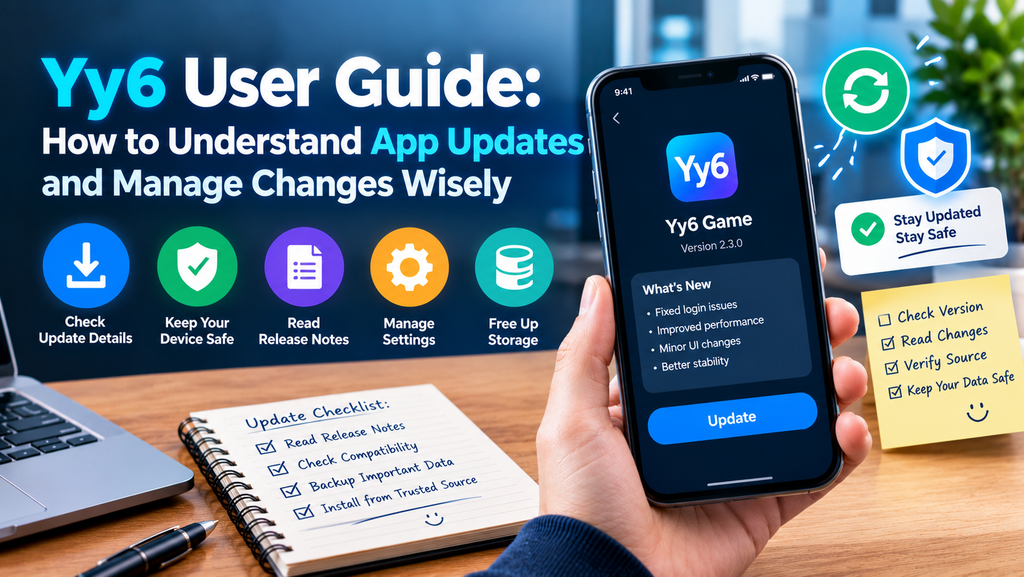
Mobile applications can change over time. A familiar menu may look different after an update, a setting may move to another section, or an older feature may stop working. These changes are not always problems, but users should understand what has changed before adjusting their habits.
The Yy6 game is a name associated with mobile gaming content. Details about its actual services and available versions should always be confirmed through reliable sources. This guide focuses on a useful topic for mobile users: understanding software updates, recognizing important changes, and handling unexpected differences without making unnecessary mistakes.
Why Mobile Applications Receive Updates
An application is not always released in its final form. Developers may publish updates to improve software, correct problems, or adjust compatibility with newer devices.
Updates Can Change More Than Appearance
Some updates change the way an app looks. Others work in the background and may not create any visible difference.
Common update purposes include:
- Fixing errors that affect normal use.
- Improving compatibility with newer operating systems.
- Updating outdated technical components.
- Adjusting menus or navigation.
- Addressing known security weaknesses.
Not every update includes all these changes. The release information should explain what the developer intended to improve.
An Update Is Not Automatically an Improvement
A newer version may introduce a feature, but it can also create temporary compatibility problems. An older phone may respond differently from a newer device.
This does not mean users should avoid updates. It means they should use trustworthy update sources and understand the changes before making decisions.
Yy6 Game Information: Identify What Has Changed
When information about Yy6 appears in different places, descriptions may not always match. One page might discuss an older release while another describes a different version.
Compare the Details, Not Just the Names
Start with the basic information available about the application or service. Look for the developer name, version number, release date, and description.
If two pages use the same app name but provide different details, do not assume they refer to the same product.
A clear comparison should include:
- The exact application name.
- The developer or publisher.
- The stated version number.
- The release date, if available.
- The changes described in the release notes.
These details can help you avoid confusing unrelated files or outdated information.
Keep a Note of Important Changes
If an update changes a setting you use regularly, make a short note of the old and new behavior.
You do not need to record every small design change. Focus on information that affects account access, device compatibility, privacy, or normal app use.
This makes it easier to understand later changes and explain a problem if you need technical support.
How to Prepare Your Phone Before an Update
A little preparation can reduce the chance of problems during software updates.
Check Available Storage
Updates may require temporary space while files are downloaded and installed. If your phone is nearly full, the process may fail or take longer than expected.
Before updating, review your storage settings. Remove unnecessary downloads only after confirming that you no longer need them.
Keep important photos and documents backed up when possible.
Make Sure Your Battery Is Sufficient
An update should not be interrupted because your phone runs out of power. Charge your device before starting a major update.
For longer installation processes, keeping the phone connected to a suitable power source can help.
Avoid switching off the device while an installation is still in progress unless the device instructions specifically tell you to do so.
Check Your Internet Connection
Updates may involve large files. A stable connection can make the download process more reliable.
Use a trusted Wi-Fi connection when practical, especially if your mobile data plan has a limit. Do not download installation packages from unknown pages just because they promise a faster update.
Understanding Yy6 APK and Version Changes
An APK is an Android application package. It is one method of distributing Android software outside the usual app installation process.
A page may advertise a Yy6 game apk as a newer release, but the label alone does not confirm its origin or contents.
Verify the Package Before Installing
Check the publisher information, version details, and stated device requirements. Make sure the package comes from a source you can trust.
Be cautious if a download page does not identify the developer or provides no useful release information.
A Yy6 apk download should not be treated as genuine simply because its file name matches the name shown on a website.
Avoid Unnecessary Version Switching
Installing several versions without a clear reason can create confusion. You may end up with different files, duplicate icons, or uncertainty about which version is currently installed.
Before replacing an existing app, understand how the update works and whether local information could be affected.
If you cannot verify the package, do not proceed.
What to Do When an Update Changes App Behavior
Sometimes an app behaves differently after an update. A button may move, a menu may look unfamiliar, or a previous setting may no longer be available.
Do Not Change Everything at Once
Start by identifying the exact difference. Is a feature missing, is a page loading slowly, or has the layout simply changed?
Try one basic check at a time:
- Read the available release notes.
- Restart the application.
- Check whether your device software needs an update.
- Review the relevant app settings.
- Consult reliable support information if the issue continues.
Changing several settings together makes it harder to identify the real cause.
Know When to Report a Problem
If a feature stops working after an update, note the device model, operating system, app version, and steps that cause the issue.
Avoid including passwords, verification codes, or other private account details in a support request.
Clear information can make technical troubleshooting more effective.
Keep Old Installation Files Under Control
Phones can collect unused installation packages over time. These files may remain in the Downloads folder even after an application has been installed.
Review Files Before Removing Them
Check the file name, location, and purpose before deleting anything. If you do not recognize a file, do not open it just to find out what it contains.
If you have saved a Yy6 download package, confirm whether it is still needed. Keep important documents separate from temporary installation files.
Avoid Large Collections of Unknown Packages
Some pages advertise a Yy6 game download or yy6 all game download collection with several files. A large collection does not mean every package is genuine or useful.
Review each item separately. Only keep files that have a clear purpose and a trustworthy source.
Final Thoughts
App updates are a normal part of mobile software, but users should not install every advertised version without checking the details. Understanding release notes, preparing your device, and keeping track of important changes can make updates easier to manage.
For Yy6, rely on verifiable information instead of file names or promotional claims. Check the source, confirm compatibility, and avoid unnecessary installation changes. A careful update routine helps you stay organized and reduces avoidable technical problems.
Frequently Asked Questions
1. Why do mobile apps receive updates?
Updates may fix errors, improve compatibility, address security issues, or change existing features. The exact purpose depends on the release.
2. How can I identify the latest Yy6 version?
Check reliable information associated with the actual service. Compare the version number, publisher details, and release information rather than trusting a page that only uses the word latest.
3. Should I install every new Yy6 game APK?
No. First confirm the source, developer, file details, and compatibility. Avoid installing packages that cannot be verified.
4. What should I do if an update causes a problem?
Identify the exact issue, restart the app, review the release information, and check your device settings. If the problem continues, contact a reliable support channel.
5. Can an app update remove my saved information?
It depends on how the application stores its data and how the update is designed. Review any available instructions and back up important information when possible.
6. Is it necessary to keep old APK files?
Usually, no. Once you have confirmed that an installation package is no longer needed, you can remove it to free storage. Always identify the file before deleting it.