
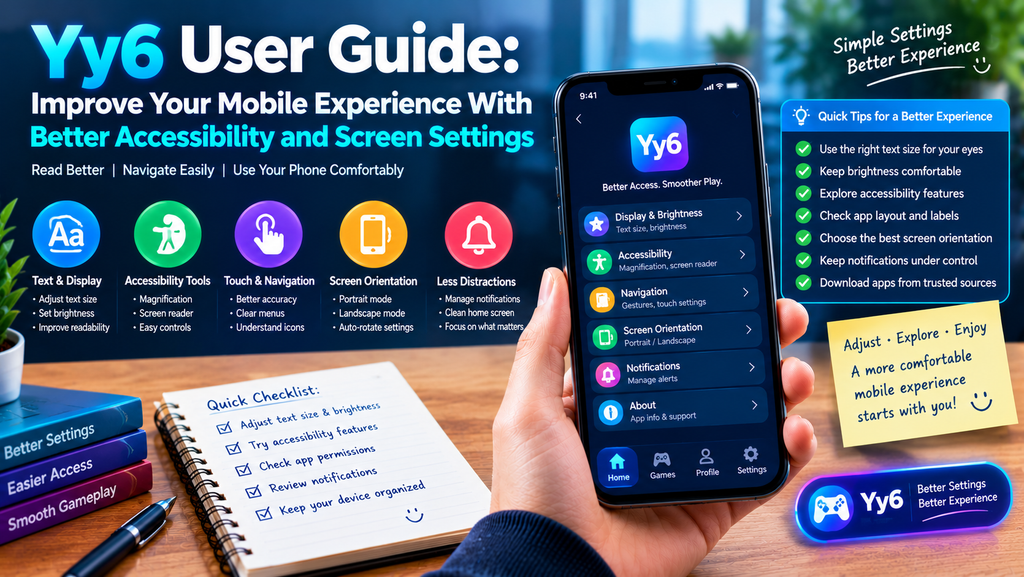
A mobile application should be easy to read, understand, and control. However, not every phone has the same screen size, display quality, or accessibility options. Small text, unclear buttons, and crowded menus can make everyday app use more difficult than it needs to be.
People interested in Yy6 can benefit from understanding how phone settings affect the way mobile content appears. Instead of changing several options without a clear reason, users can adjust their devices to make information easier to read and navigation more comfortable.
This guide covers display settings, text readability, touch controls, accessibility tools, and practical ways to create a more comfortable mobile experience.
Make Your Phone Screen Easier to Read
Screen readability affects how quickly you understand information. If text is too small or the display is difficult to see, even simple tasks can become frustrating.
Adjust Text Size to Match Your Needs
Most Android phones allow users to change the size of text across the device. This can make menus, instructions, and other information easier to read.
Open your phone’s display settings and look for font size or text size controls. Increase the size gradually until the text feels comfortable.
Avoid making it unnecessarily large. Very large text may cause some pages to display fewer words or require more scrolling.
Choose a Comfortable Display Brightness
Brightness should match the environment around you. A screen that looks clear indoors may appear difficult to read outside.
Automatic brightness can adjust the display based on surrounding light, depending on your device. You can also change brightness manually.
Try not to keep the screen unnecessarily bright for long periods. A comfortable setting can help reduce visual strain during everyday phone use.
Understand Accessibility Features on Android
Accessibility tools are designed to make devices easier to use. They can help people who have difficulty reading small text, hearing alerts, or controlling touch-based screens.
Explore Screen Magnification
Some Android devices include a magnification feature. It allows users to enlarge parts of the screen when normal text is too small.
This can be useful when reading detailed instructions or checking small labels. The exact activation method depends on the phone model and Android version.
Check your device’s accessibility settings before enabling it.
Use Screen Readers When Needed
A screen reader describes on-screen information through spoken feedback. It can help users who prefer listening to text instead of reading everything visually.
Android devices may include built-in screen-reading tools, although names and controls can vary.
If you use a screen reader, take time to understand its gestures and navigation system. Some touch actions may work differently when the feature is enabled.
Yy6 Navigation: Make On-Screen Controls Easier to Understand
Mobile interfaces often contain menus, icons, buttons, and text links. Their layout can affect how easily users complete basic actions.
Give Yourself Time to Understand the Layout
When opening a platform such as the Yy6 game, first review the available menu labels and instructions. Do not assume that an icon has the same meaning across every application.
A symbol that opens settings in one app may perform a different action elsewhere.
Read the nearby text whenever possible. If the purpose of a button is unclear, avoid tapping it until you understand what it does.
Improve Touch Accuracy
Small buttons can be difficult to select, especially on phones with compact displays.
You can improve touch accuracy by:
- Holding your phone in a stable position.
- Avoiding rushed taps.
- Cleaning the screen if fingerprints affect touch response.
- Using the device’s supported accessibility controls.
- Keeping the screen free from unnecessary overlays.
If the phone repeatedly registers incorrect touches, check the screen protector and device condition. A software issue is not always the cause.
Choose a Comfortable Screen Orientation
Some applications support both portrait and landscape layouts. The better option depends on how the content is presented.
Portrait Mode for Simple Reading
Portrait mode is common for reading instructions, reviewing account details, and scrolling through text.
It can be easier to use with one hand, depending on the size of the phone.
Landscape Mode for Wider Content
Landscape mode provides more horizontal space. It may help when viewing tables, wide images, or content designed for a larger layout.
Not every app supports automatic rotation. If the screen does not change direction, check your phone’s rotation setting and the app’s own layout support.
Yy6 Game APK: Check Display Compatibility Before Installation
A file described as a Yy6 game apk may be intended for Android devices, but that does not guarantee it will display or work correctly on every phone.
Screen resolution, operating system version, hardware, and application design can all affect compatibility.
Review the Requirements First
Before considering a Yy6 apk download, check the available device requirements and confirm that the file comes from a trustworthy source.
A page that only lists a file name and promises universal compatibility does not provide enough information.
Avoid Unverified Display Fixes
Be careful with third-party tools that claim to unlock hidden display features or automatically improve every app.
Such tools may request broad permissions or change device settings in ways you do not understand.
Use your phone’s built-in display and accessibility controls whenever possible.
Reduce Distractions During Mobile Use
A comfortable experience also depends on how much information competes for your attention.
Organize Notifications
Frequent alerts can interrupt reading and make it harder to focus. Review notification settings and keep only the alerts that matter to you.
You can also use Do Not Disturb during work, study, or rest periods.
Remember that notification controls on your phone may be separate from settings inside an individual app.
Keep Your Home Screen Simple
A crowded home screen can make it harder to locate the applications you use regularly.
Group related apps into folders and remove shortcuts that you no longer need. This does not delete the applications; it simply changes how they appear on your home screen.
A clean layout can save time and make daily navigation more straightforward.
Build a Comfortable Daily Screen Routine
Good device settings cannot replace healthy usage habits. Long periods without breaks may cause discomfort, even when the display is adjusted correctly.
Take Regular Breaks
During extended screen use, look away from the display from time to time. Focus on something farther away and allow your eyes to rest.
You can also stretch your hands and change your sitting position.
Notice What Makes Your Device Uncomfortable
Pay attention to recurring problems. If text feels too small, adjust the font size. If the screen is too bright, lower the brightness. If touch controls are difficult, review accessibility options.
Make one change at a time so you can understand which adjustment actually helps.
Final Thoughts
A better Yy6 mobile experience does not depend on complicated tools. Clear text, comfortable brightness, accessible controls, and an organized screen can make everyday app use easier.
Take time to understand your phone’s built-in features before installing additional software. Check compatibility information before considering any APK, and avoid making changes based on unsupported promises. Small, thoughtful adjustments can make your device more comfortable and easier to manage.
Frequently Asked Questions
1. How can I make mobile text easier to read?
Open your phone’s display settings and adjust the font size. You can also use magnification tools if your device supports them.
2. Does every Yy6 game version support landscape mode?
That cannot be assumed. Screen orientation depends on the application’s design and the features supported by its particular version.
3. What are Android accessibility settings?
They are built-in tools designed to make phones easier to use. Depending on the device, they may include magnification, screen readers, larger text, and other controls.
4. Can a Yy6 game APK work on every Android phone?
No. Compatibility depends on the package requirements, operating system, and device hardware. Confirm the source and requirements before installing anything.
5. Why does my phone register incorrect touches?
Possible causes include a dirty screen, damaged display, unsuitable screen protector, or software problems. Check the screen condition before assuming the app is responsible.
6. How can I reduce distractions while using mobile apps?
Organize your home screen, limit unnecessary notifications, and use Do Not Disturb when you need uninterrupted time.