
An unexpected error can interrupt even the simplest mobile activity. A page may stop responding, a button may not work, or an application may close without explanation. These problems can be frustrating, especially when you do not know what caused them.
For users interested in Yy6, understanding how to interpret technical errors can make mobile troubleshooting more practical. Instead of trying random fixes, it is better to identify the problem, understand the possible cause, and choose an appropriate solution.
This guide explains common mobile error types, how to investigate them, and how to avoid making a small technical issue worse.
Understand What an Error Message Is Telling You
An error message is a notification that something did not work as expected. It may appear because of a device problem, an internet issue, an application fault, or an unavailable service.
Read the Complete Message
Many users close an error message immediately without reading it. This removes useful information that could help identify the problem.
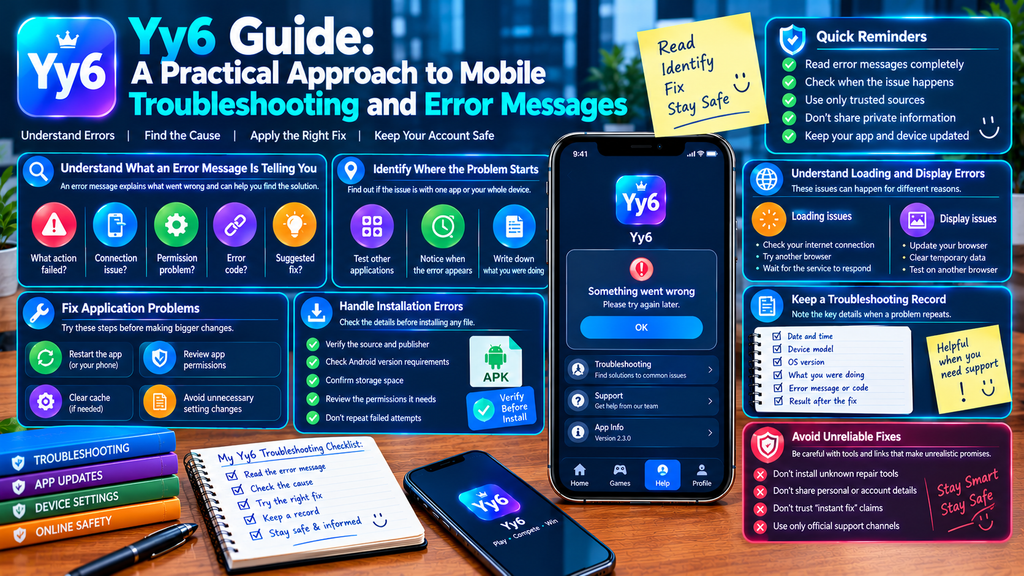
Take a moment to read the full message. Look for details such as:
- What action failed?
- Did the problem happen during loading or after tapping a button?
- Does the message mention a connection or permission?
- Is an error code displayed?
- Does the message suggest a specific action?
A short message can sometimes reveal more than several minutes of random troubleshooting.
Understand the Difference Between Errors and Warnings
An error usually means an action could not be completed. A warning may simply indicate that something needs attention.
For example, a storage warning does not always mean an application has stopped working. It may mean your phone is running low on available space.
Understanding this difference helps you respond to the actual problem instead of making unnecessary changes.
Yy6 Troubleshooting: Identify Where the Problem Starts
Before changing any settings, find out whether the issue is limited to one application or affects the entire device.
Test Other Applications
If a page connected with the Yy6 game does not load, open another trusted website or application.
If everything else works normally, the problem may be related to the particular service or page.
If several applications fail at the same time, check your internet connection and device settings first.
Notice When the Error Appears
The timing of an error can provide useful clues.
Consider these examples:
- An error before a page opens may involve connectivity.
- An error during installation may involve storage or compatibility.
- An error after changing a setting may involve permissions.
- An error that appears repeatedly may indicate a persistent software issue.
Write down what you were doing when the problem occurred. This makes it easier to repeat the steps and identify the cause.
Fix Application Problems Without Random Changes
Some mobile problems can be resolved through basic checks. However, changing several settings together makes it difficult to know which action helped.
Restart the Application First
Close the application completely and open it again. This can help when a temporary process stops responding.
If the problem continues, restart your phone. A device restart can clear certain temporary issues and allow background processes to start again.
Review Available App Permissions
An application may need certain permissions to perform specific actions. If a required permission is disabled, some functions may not work as expected.
Open your phone’s application settings and review the permissions listed for the relevant app.
Do not enable every permission automatically. Allow access only when the purpose is clear and relevant.
Clear Cache Only When Appropriate
Cached data helps applications load certain information more quickly. Sometimes, temporary cached files can become outdated or cause unexpected behavior.
Android devices may provide an option to clear an application’s cache.
Be careful not to confuse this with clearing app storage or data. Those options can have different effects and may remove locally stored information or sign-in details.
Understand Installation Errors Before Trying Again
Installation problems can happen for several reasons. The file may be incomplete, the device may not support it, or the installation source may be unreliable.
Check the Requirements of a Yy6 Game APK
A file described as a Yy6 game apk should not be installed simply because its name looks familiar.
Before considering installation, confirm:
- The source of the file.
- The publisher or developer information.
- The Android version requirements.
- The available storage requirements.
- The permissions requested during installation.
If these details cannot be verified, stop the process.
Avoid Repeated Installation Attempts
Trying to install the same unknown package repeatedly will not make it more trustworthy.
If a Yy6 apk download fails, first identify the reason. Check whether the source is legitimate, whether the file is complete, and whether the device meets the stated requirements.
Do not disable security protections just to force an installation to complete.
Deal With Loading and Display Errors
A page that appears blank or takes too long to load may have a different problem from an application that crashes.
Check Browser Compatibility
If you access a service through a browser, make sure the browser is updated through its trusted distribution source.
Some websites may not work correctly with older browser versions. Temporary browser data can also affect how pages display.
You can test the page in another supported browser if the problem continues.
Look for Temporary Service Interruptions
Sometimes, the issue is not on your phone at all. A website or online service may be temporarily unavailable.
If other websites work normally but one particular page remains unavailable, wait and try again later.
Repeatedly refreshing the same page is unlikely to solve a problem caused by the service itself.
Keep a Simple Record of Repeated Problems
When the same error happens several times, memory alone may not be enough to identify a pattern.
Create a Basic Troubleshooting Note
Record a few details whenever a problem repeats:
| Detail | What to Record |
| Date and time | When the error appeared |
| Device | Phone model |
| Software | Operating system version |
| Action | What you were doing |
| Error | Exact message or code |
| Result | What happened after the fix |
This information can be useful if you need help from a legitimate support team.
Protect Your Private Information
A screenshot may help explain a technical issue, but check it before sharing.
Hide passwords, phone numbers, email addresses, verification codes, and other private details. Never send account credentials to someone claiming they can repair your device.
Avoid Unreliable Fixes Advertised Online
When a technical problem occurs, some websites promote tools that promise instant repairs or guaranteed results.
Be careful with these claims.
A page offering a Yy6 download or Yy6 game download may also display unrelated repair tools or additional installation offers. Do not assume those tools are connected to the actual service.
Likewise, a page promoting yy6 all game download does not prove that its files are genuine or necessary.
Use built-in phone settings and trustworthy support information before installing additional software.
Final Thoughts
Mobile errors are easier to handle when you understand what caused them. Read the message, identify when the problem occurs, and test one possible solution at a time.
For Yy6, avoid assuming that every issue requires a new download or complete reinstallation. Check your device, browser, connection, and permissions before making major changes. A careful troubleshooting process can save time, protect important information, and prevent unnecessary software problems.
Frequently Asked Questions
1. Why does an application show an unexpected error?
Possible reasons include internet interruptions, outdated software, missing permissions, insufficient storage, or temporary service problems. The exact message can help identify the cause.
2. What should I do if the Yy6 page stops responding?
Check whether other websites work, restart your browser, and try again after a short wait. If the problem affects only one page, the service itself may be unavailable.
3. Can clearing cache fix mobile application problems?
It can help with certain temporary data issues. However, clearing cache does not fix every problem, and it should not be confused with clearing application storage or data.
4. Why might a Yy6 game APK fail to install?
Possible causes include an incomplete package, unsupported Android version, insufficient storage, or an unreliable file source. Verify the package before attempting installation again.
5. Should I install a repair application when an error appears?
Not automatically. Many problems can be checked through built-in device settings. Avoid unfamiliar repair tools that request unnecessary permissions or make unrealistic promises.
6. What information should I provide when reporting an error?
Share the exact error message, device model, operating system version, and steps that caused the problem. Remove private information before sending screenshots or other records.